
Installation
One command. That's it.
Quick Install
uvx datagvat-mcp initThis single command:
- Detects your installed AI tools (Claude Desktop, Continue, Cline)
- Configures each tool automatically
- Verifies the setup works
No Python setup required. The uvx command handles everything—virtual environments, dependencies, paths. Just run and go.
Prerequisites
You need uv installed:
curl -LsSf https://astral.sh/uv/install.sh | shpowershell -ExecutionPolicy ByPass -c "irm https://astral.sh/uv/install.ps1 | iex"Interactive Installation
Run the installer:
uvx datagvat-mcp initYou'll see something like:
Detecting AI tools...

  ✓ Claude Desktop (found)
  ✓ Continue (found)
  ✗ Cline (not installed)

Select tools to configure:
  [x] Claude Desktop
  [x] Continue
  [ ] Cline (not available)

Configuring Claude Desktop... done
Configuring Continue... done

✓ Installation complete!

Restart your AI tools to start using Austrian open data.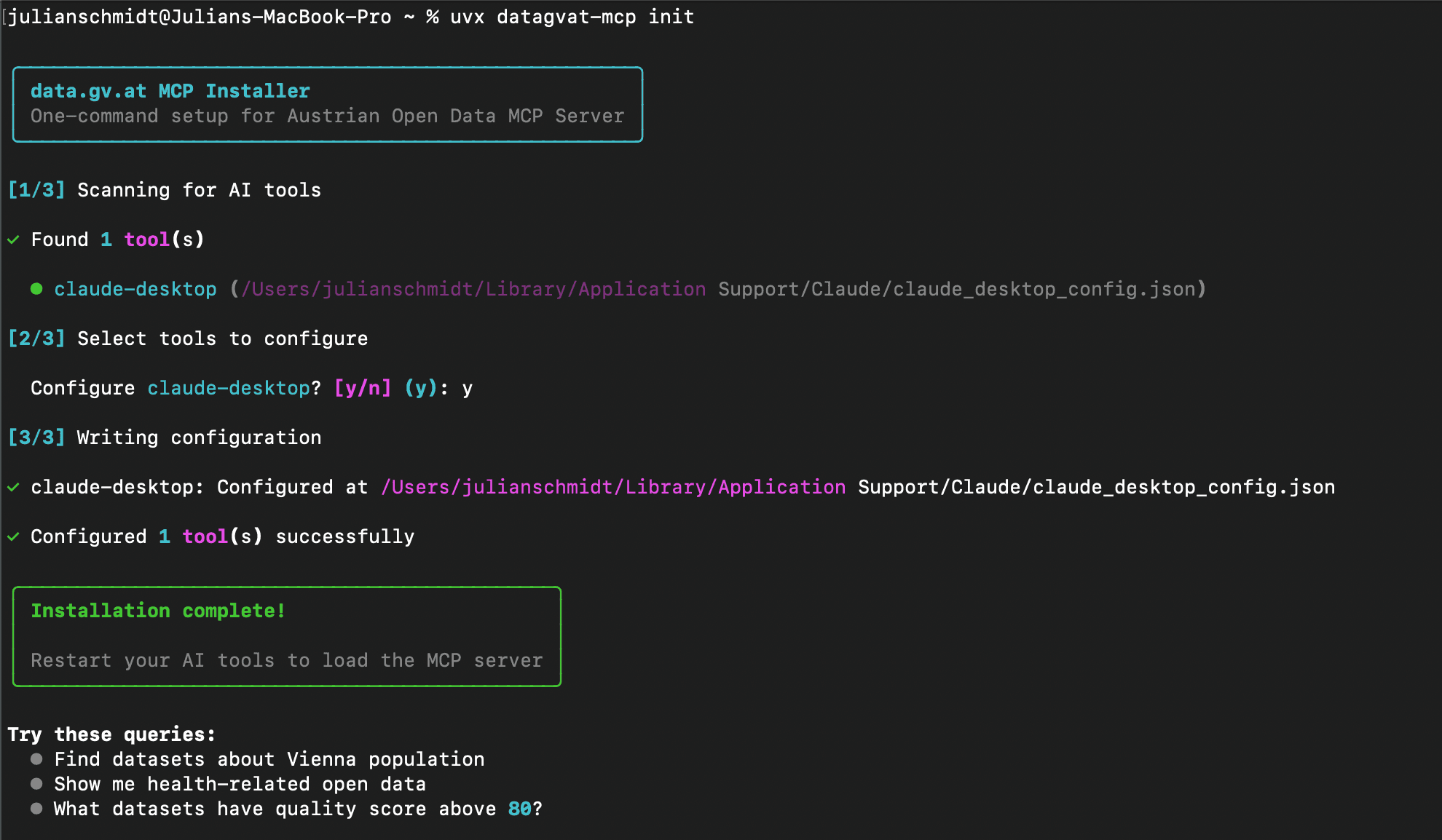
CLI Installer Output
Screenshot showing the CLI installer detecting Claude Desktop and Continue, then successfully configuring both tools.
Non-Interactive Mode
Skip all prompts and configure everything automatically:
uvx datagvat-mcp init -yVerify Installation
Check that everything is working:
uvx datagvat-mcp doctorChecking installation...
✓ Python 3.11+ available
✓ uv package manager working
✓ MCP server loads correctly
✓ API connection successful
Checking AI tool configs...
✓ Claude Desktop configured correctly
✓ Continue configured correctly
All checks passed!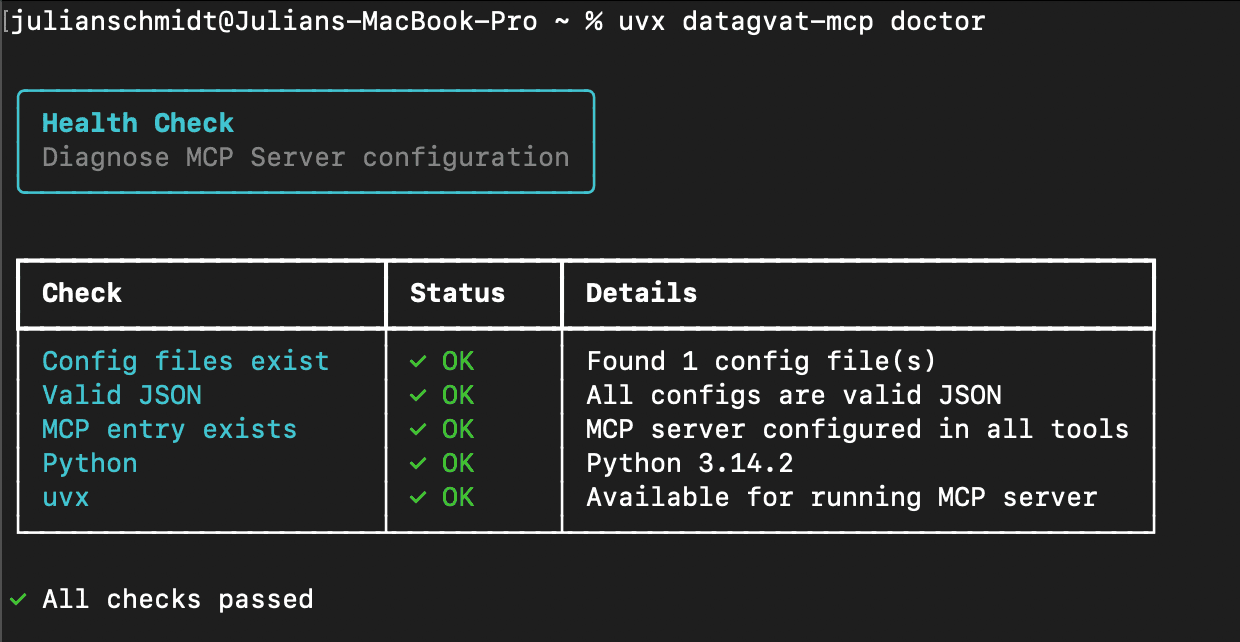
CLI Doctor Output
Screenshot showing the doctor command verifying a healthy installation with all checks passing.
Update Configuration
After updating the MCP server, refresh your tool configurations:
uvx datagvat-mcp updateCommands Reference
| Command | Description |
|---|---|
uvx datagvat-mcp | Run the MCP server (used by AI tools internally) |
uvx datagvat-mcp init | Install and configure AI tools |
uvx datagvat-mcp init -y | Install without prompts |
uvx datagvat-mcp doctor | Verify installation health |
uvx datagvat-mcp update | Update tool configurations |
uvx datagvat-mcp uninstall | Remove from AI tools |
uvx datagvat-mcp --version | Show version |
Environment Variables
Optional configuration via environment variables (prefix AUSTRIA_MCP_):
| Variable | Default | Description |
|---|---|---|
PIVEAU_API_BASE | https://data.gv.at/katalog/api/hub/repo | API base URL |
REQUEST_TIMEOUT | 30 | HTTP timeout in seconds |
LOG_LEVEL | INFO | Logging level (DEBUG, INFO, WARNING, ERROR) |
Set these in your shell profile or .env file if needed. Most users don't need to change anything.
Supported AI Tools
The installer auto-detects and configures:
| Tool | Platform | Status |
|---|---|---|
| Claude Desktop | macOS, Windows, Linux | Full support |
| Continue | VS Code, JetBrains | Full support |
| Cline | VS Code | Full support |
Other MCP-compatible clients can be configured manually—see Other Clients.
Troubleshooting
"uvx: command not found"
Install uv first:
# macOS/Linux
curl -LsSf https://astral.sh/uv/install.sh | sh

# Windows (PowerShell)
powershell -ExecutionPolicy ByPass -c "irm https://astral.sh/uv/install.ps1 | iex"Then restart your terminal.
"No AI tools detected"
The installer looks for config files in standard locations. If your tools are installed elsewhere:
- Run
uvx datagvat-mcp doctorto see what's detected - Check Other Clients for manual configuration
Server not appearing in Claude Desktop
- Make sure you've restarted Claude Desktop completely (Cmd+Q / right-click tray → Exit)
- Run
uvx datagvat-mcp doctorto verify configuration - Check Claude Desktop logs for errors:
- macOS:
~/Library/Logs/Claude/ - Windows:
%APPDATA%\Claude\logs\ - Linux:
~/.config/Claude/logs/
- macOS:
macOS: "spawn uvx ENOENT" or "Failed to spawn process"
macOS GUI apps don't inherit your shell's PATH. The installer now handles this automatically by using the absolute path to uvx.
Fix: Run uvx datagvat-mcp init or uvx datagvat-mcp update to apply the fix.
If the issue persists, see Troubleshooting for manual configuration.
Connection errors
Test API access directly:
curl https://www.data.gv.at/api/hub/search/cataloguesIf this fails, check your network/firewall settings.
Manual Installation
If you prefer manual setup or need a custom configuration:
Edit your Claude Desktop config:
macOS: ~/Library/Application Support/Claude/claude_desktop_config.json
Windows: %APPDATA%\Claude\claude_desktop_config.json
Linux: ~/.config/Claude/claude_desktop_config.json
{
  "mcpServers": {
    "datagvat": {
      "command": "uvx",
      "args": ["datagvat-mcp"]
    }
  }
}
macOS users
macOS GUI apps don't inherit your shell PATH. Replace "uvx" with the absolute path from which uvx (e.g., "/Users/yourname/.local/bin/uvx").
Edit ~/.continue/config.json:
{
  "experimental": {
    "modelContextProtocolServers": [
      {
        "transport": {
          "type": "stdio",
          "command": "uvx",
          "args": ["datagvat-mcp"]
        }
      }
    ]
  }
}
macOS users
macOS GUI apps don't inherit your shell PATH. Replace "uvx" with the absolute path from which uvx.
In VS Code settings (settings.json):
{
  "cline.mcpServers": {
    "datagvat": {
      "command": "uvx",
      "args": ["datagvat-mcp"]
    }
  }
}
macOS users
macOS GUI apps don't inherit your shell PATH. Replace "uvx" with the absolute path from which uvx.
Next Steps
- Your First Query — Try searching for Austrian datasets
- Quick Reference — Command cheat sheet
How is this guide?
Last updated on